Showing posts with label OnePlus. Show all posts
Showing posts with label OnePlus. Show all posts
Friday, December 11, 2015
Install Twrp recovery and root Oneplus X(opx ,onyx)-How to
Oneplus surely changed how the mid range and affordable smartphone should be with their new handset,Oneplus X but its invite system makes it hard to grab one.But one of big advantage of getting a android device with high end specifications is that a lot of developers get attracted to them and we could possibly get improved android roms much earlier than other handsets at the same price.
But android development for any device usually starts with bootloader unlocking and then later it proceeds further to "Rooting it" and then to custom recoveries or roms. Being a developer friendly device unlocking bootloader of Oneplus X is fairly easy and we have covered it in a separate guide.Link that guide is mentioned below.
If you have already unlocked bootloader of oneplus X (opx or onyx) and want to root it then you have to first install a custom recovery.Even though there is no support for Official Twrp recovery unofficial one is already available which can installed on it without any issues.
But as you know installing recovery is a risky process and that too an unofficial twrp, we hold no responsibility at all if you have bricked it.With that in mind proceed further to know how to install twrp recovery and root Oneplus X (opx or onyx).
Before proceeding further:
Install Twrp recovery and root Oneplus X(opx ,onyx):
About Twrp recovery:
Team win recovery project abbreviated as Twrp is one first recovery to offer a completely touch driven interface.The ui is completely xml based which means you can customise the interface with different themes and also it is only recovery that supports themes.Unlike the clockworkmod recovery this recovery has the option to wipe all the data,cache,dalvik,system,internal with just only one swipe.Of course you have to choose what to be wiped on the device.Twrp officially does not support oneplus x it might take some time for official one to come into existence.
Checkout the features of Twrp:
But android development for any device usually starts with bootloader unlocking and then later it proceeds further to "Rooting it" and then to custom recoveries or roms. Being a developer friendly device unlocking bootloader of Oneplus X is fairly easy and we have covered it in a separate guide.Link that guide is mentioned below.
If you have already unlocked bootloader of oneplus X (opx or onyx) and want to root it then you have to first install a custom recovery.Even though there is no support for Official Twrp recovery unofficial one is already available which can installed on it without any issues.
But as you know installing recovery is a risky process and that too an unofficial twrp, we hold no responsibility at all if you have bricked it.With that in mind proceed further to know how to install twrp recovery and root Oneplus X (opx or onyx).
Before proceeding further:
- Though there is no need to backup any data, we still recommend you to backup apps and other data on your device to computer or cloud.If you didn't unlock bootloader then you have to unlock it first.
- Install drivers on your computer so that it is recognised in fastboot mode.
- You have to install adb or fastboot on your computer without which you can flash twrp at all.
- Unlocked bootloader of oneplus x.
- Battery: Charger your oneplus X to at least 60% .
- Download Trwp recovery for Oneplus X(googledrive mirror) and transfer it to minimal adb and fastboot folder.
Must Check: How to Unlock bootloader of Oneplus X
Rooting Oneplus X is done in three stages.In Stage one we will be unlocking bootloader.In stage 2 we will install twrp recovery on oneplus x and in final stage we will be flashing chain-fire superuser through recovery to gain root access.
 |
| Install Twrp recovery and root Oneplus X(opx ,onyx) |
Team win recovery project abbreviated as Twrp is one first recovery to offer a completely touch driven interface.The ui is completely xml based which means you can customise the interface with different themes and also it is only recovery that supports themes.Unlike the clockworkmod recovery this recovery has the option to wipe all the data,cache,dalvik,system,internal with just only one swipe.Of course you have to choose what to be wiped on the device.Twrp officially does not support oneplus x it might take some time for official one to come into existence.
 |
| Twrp recoveryfor root Oneplus X |
- Touch interface:It is one of the first if not he first recovery to offer a complete touch based user interface which makes navigation a lot easier and later cwm also introduced touch based recovery.
- Individual Backups: Creating a complete backup is a must for any flasher but it eats up a lot of space of your internal or external storage.Twrp will let you to backup individual portions of rom, this saves lot of space on your android device.This feature comes handy when you are flashing kernels.If You can backup just boot img before flashing a kernel if it fails you can restore just boot img instead of complete nandroid backup.
- Advanced wipe:There are two options for wiping your device partitions one is wipe and other is advanced wipe.If you choose just wipe option it factory resets while advance wipe option will allow you to choose what to wipe and what not.
- Theme Engine: This is one of the best feature and is only available in Twrp only.Since ui of twrp is XML based you can customize its ui with already available themes or you can create your own theme if you can.
- Multi rom:As the name says you can boot more than two roms on your device and is exclusive to twrp only as of now.This feature may not be available from official twrp team and booting more than one rom requires a modified kernel by your rom developer.
Since twrp recovery doesn't supports oneplus X officially there might be bugs in this unofficial builds.It might take some time for the official builds to come out but till then you have to rely on this one only to root your handset.Proceed to the next step only if you have unlocked bootloader.
Install Twrp recovery on Oneplus X (opx ,onyx):
- Download and install oneplus X (onyx) drivers on your computer if you haven't done it before.
- Now power off the device completely and wait for few seconds to confirm that it is completely off.
- Hold volume down/up(only one) and power button at same time for few seconds to boot into fastboot mode.If you are requested to chose a language while booting into fastboot.
- If you are unable to boot into fastboot mode manually then you can do it using advanced reboot option which you have to enable it in developer options.
- Once you are in fastboot mode connect it to computer through usb cable and if you notice any driver installation process let it complete first.
- Download fastboot on our laptop or Pc and install it.You can install it any location but choose location as c: which is default location.
- open the fastboot folder which is located in "c:\programming files".Right click on empty space by holding shift and you see an option "open cmd here".
- If you don't find this option then press windows and R buttons at same time ,Run pops up and type cmd to open command prompt.
- Now go to fastboot folder and copy the address location of it which you can see in address bar of folder.
- In command prompt type the command "Cd location of fastboot folder" and press enter.You will notice that fastboot appears in command line.To paste location right click on empty space in cmd and several pops up.Select paste.
- Once you press enter you have to notice minimal adb and fastboot in command line instead of c or some thing.
- Once you are in fastboot window type "fastboot devices" and press enter.If your device is detected you will get a serial number in list of devices attached.If not uninstall drivers and install them again.
- Download twrp recovery image from the above link and transfer it to the minimal adb and fastboot folder.
- Rename Opx recovery img file to "recovery",so that you can type the command easily.
- Connect the device to system using usb cable again by keeping it in fastboot mode.
- Now type the command "fastboot devices " to see if it is detected.If it is not detected by fastboot reboot the device and enable usb debugging and see if it is detected.
- If detected type the command "fastboot flash recovery recovery.img" to flash the recovery permanently.Hit enter to flash it.
Once you hit enter twrp recovery will be flashed in 2-3 seconds.Once it is flashed you can proceed to next step to root Oneplus X.
#1 How To Root Oneplus X(opx or onyx):
- If you have installed twrp recovery just reboot it by typing the command "fastboot reboot".
- Now download supersu zip file and transfer it to internal storage of your device.
- Now power off your handset and boot into recovery mode using button combinations.
- Once you are in twrp recovery,click on backup and make a complete nandroid backup.It is essential for you to make a backup as there is no other way to bring back soft bricked to normal working state for now.
- Once you have backed up just click on restore and check if backup is available or not.
- If backup is available you are good to go.
- Click on install and then navigate to location where you have placed supersu zip file and select it.
- Swipe to confirm flash and then reboot to system once it is done.
- Once you reboot the device you will supersu application in app drawer.
- To confirm if it rooted or not download root checker app from playstore and run it.
- If it asks for root permissions then your oneplus x is rooted.
#2 Root Oneplus X without flashing recovery:
If you don't want to flash twrp recovery but still want to root your Oneplus x then follow below steps to do so.But you need to have bootloader unlocked for this procedure to work.
By following any one of two procedures which are listed above you will achieve root access for sure.If you have any doubts about installing Twrp recovery on Oneplus X then leave a comment below.- Download latest version of supersu and transfer it to internal storage o
- Put your Oneplus X in bootloader mode and connect it to computer using usb cable.
- Download twrp recovery image file from above google drive link and then transfer it to minimal adb and fastboot folder.
- Now open fastboot and type the command "fastboot devices" to confirm if your oneplus x is detected by it or not.
- Once detected you need to type the command "fastboot boot recovery recovery.img" and hit enter.You will notice that device boots into twrp recovery.
- Once you are in twrp recovery click on install and flash the supersu zip file and reboot it.
- Once Oneplus X reboots you will find supersu app in app drawer which means you have rooted it successfully.
Final words on rooting Oneplus X (opx or onyx):

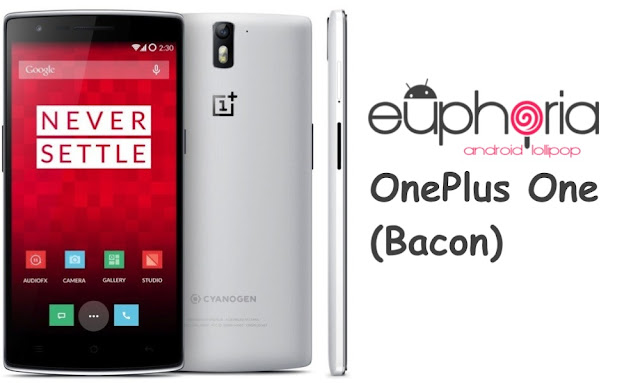
Install android lollipop based euphoria os rom on Oneplus one Bacon
Install android lollipop based Euphoria Os custom rom on your Oneplus one.Euphoria Os rom is custom firmware for Oneplus one.If you are bored of your stock os then flashing this rom on your oneplus one might bring a new experience.
About Oneplus one: Oneplus one is one of the best android device that you can buy at low price with flagship specs.It is powered by a snapdragon 801 chipset clocked at 2.5ghz with 3gb of ram along with 16 or 64 gb internal storage.It sports a huge 5.5 inch full Hd display which is protected by a corning gorilla glass 3 layer.Primary camera on this device is 13mp shooter while secondary camera is a 5mp which can record videos upto 1080P.
Two key selling factors of this device is its low price and it run on Cyanogenmod.This is the only device which has more than three stock roms officially released by manufacturer itself
Install EUphoria os custom roms.Oneplus One has a device code name "Bacon"
About Euphoria custom rom:
Euphoria OS is and after market firmware based on android open source project.You will get latest android version with this Rom.It comes with lot of added features over pure aosp Rom.Rom is completely stable for daily usuage.So you can flash it riaght away on oneplus one without any doubts.
Features of Euphoria OS:
About Oneplus one: Oneplus one is one of the best android device that you can buy at low price with flagship specs.It is powered by a snapdragon 801 chipset clocked at 2.5ghz with 3gb of ram along with 16 or 64 gb internal storage.It sports a huge 5.5 inch full Hd display which is protected by a corning gorilla glass 3 layer.Primary camera on this device is 13mp shooter while secondary camera is a 5mp which can record videos upto 1080P.
Two key selling factors of this device is its low price and it run on Cyanogenmod.This is the only device which has more than three stock roms officially released by manufacturer itself
Install EUphoria os custom roms.Oneplus One has a device code name "Bacon"
Install Euphoria Os rom On OnePlus One:

About Euphoria custom rom:
Euphoria OS is and after market firmware based on android open source project.You will get latest android version with this Rom.It comes with lot of added features over pure aosp Rom.Rom is completely stable for daily usuage.So you can flash it riaght away on oneplus one without any doubts.
Features of Euphoria OS:
- Theme engine: It comes with a cyanogenmod mod theme engine so you can play with lot of themes.This is a great way of customizing your android device. You can theme each and every element of user interface all the way from wallpapers to boot animations.There are lot of themes available in playstore and some are premium too.
- Heads up notification: This notification system is similar to that in google'e one.Swipe left to dismiss notification and right to put it in background.Swiping down on it will open notification drawer and it merges in it.
- Wake options: Depending on the device you will have double tap to wake the device option in display settings and of course you have the option to put the device into sleep by double tapping on status bar.There is a option to wake phone after connecting charger.
- Animations: You can have custom animations for app opening and closing or while scrolling.
- Navigation: Besides device wake options you can even adjust dimensions of navigation bar and set custom actions too like long pressing back button to kill recent app.In landscape mode navigation goes left hand side and yeah there is an option to disable this too if you don't like it.
- Security: Privacy guard is available in this Rom along with blacklisting of calls and messages.
- Sound: AudioFx is available for better quality of music.Other features include increasing volume ring tone,profiles,less notifications,you can disable volume adjustable sound,separate ring tones and notifications volume as usual.
- Power: Advance reboot option is enabled by default so you can boot into recovery,fast boot,soft boot easily.
- Screen recorder: There is screen recorder option too in display settings to record your actions on your device.
- Quick settings panel is customisable and brightness control too is available.
These are noticeable features of euphoria OS Rom and there are lot of other features too which you can explore on your own by flashing this custom Rom on your OnePlus one.
prerequisites:
prerequisites:
- Backup:Backup all your data which includes apps,contacts,photos videos etc everything to computer or any cloud storage as flashing Euphoria os custom ROM on Oneplus one will erase all your data.
- Battery: Charge your Oneplus one Bacon to at least 90% so that you wont encounter any battery related issues while flashing this.
- Backup Efs partitions: Backup all your efs partition of your oneplus one bacon on current ROM.If you loose signal you can just restore it back.
- Lock Gps:Lock your gps position on your current rom.If you use this a lot then you have to lock it so that it could work even after flashing other roms. It's easy to lock gps .Turn on gps in settings and find your current location in google maps and now now have locked on to gps.
- Custom recovery: You need a custom recovery like twrp installed on your oneplus one .Without it you can not flash roms at all.
- Downloads: Official Euphoria os rom oneplus one and google apps.Transfer them to internal storage of your device.
Flash Euphoria Os rom using Twrp recovery:
- Download Euphoria Os custom rom (Euphoria-OS-1.1-bacon-OFFICIAL-20150602.zip ) and Gapps transfer it to sdcard or internal storage of device.
- Power of the device completely.
- Press volume up,power button and Volume down simultaneously and once you see boot loader screen release buttons.
- Using volume down as a navigation button move to recovery and click on power button to confirm action.
- Once you are in twrp backup existing ROM first.It might take about 5 minutes for backup to complete.
- Wipe data,cache and dalvik cache.You may not need to wipe system.
- Flash ROM and then gapps.
- Reboot to system.Wait at least 15 minutes for initial boot to complete and once done you can explore ROM features.
How to unlock bootloader of Oneplus x (opx or onyx)
Oneplus x is the is the new flagship killer with excellent hardware but comes at a very price of about $250.It is powered by a snapdragon 801 processor clocked at 2.3ghz with 3gb ram.Though the display has just 1080P resolution,it should be enough for screen of size 5.0 inch.Phone is sandwiched between two corning gorilla 3 glass slabs which although looks premium but is finger print magnet.
Oneplus x (opx or onyx) is powered by a 2525mah battery which is okay for a screen of this size and the presence of amoled on this device should also bring good battery life if you go for black theme.If you are custom roms enthusiast then you must be for having this device as it gonna have good number of custom roms for sure like the other flagships of oneplus.
Since this device is available in two variant of which one has a glass back while the other has ceramic one.If you have 16gb variant of oneplus x then you have to keep in mind that its device specific codename is "Onyx or opx".
If you want to root your oneplus x then you have to unlock its bootloader first and then later part comes in picture.Unlocking bootloader of this device is fairly easy and is similar to rest of oneplus flagships and nexus models.
If you don't know how to unlock bootloader of your oneplus x then don't worry this post is for you.We will guide to do it successfully.But you have to keep in mind that this is a risky process and we don't hold any responsibility for all the nuclear fission reactions that happen in your mind if this fails. There is no need of flashing and stuff involved which means proceed further without any hesitation of bricking Oneplus x.Before proceeding further:
Before unlocking bootloader you have to install android debugging bridge on your windows computer.If you don't have it installed we have a separate guide on installing fastboot on computer which you can go through.
Oneplus x (opx or onyx) is powered by a 2525mah battery which is okay for a screen of this size and the presence of amoled on this device should also bring good battery life if you go for black theme.If you are custom roms enthusiast then you must be for having this device as it gonna have good number of custom roms for sure like the other flagships of oneplus.
Since this device is available in two variant of which one has a glass back while the other has ceramic one.If you have 16gb variant of oneplus x then you have to keep in mind that its device specific codename is "Onyx or opx".
If you want to root your oneplus x then you have to unlock its bootloader first and then later part comes in picture.Unlocking bootloader of this device is fairly easy and is similar to rest of oneplus flagships and nexus models.
If you don't know how to unlock bootloader of your oneplus x then don't worry this post is for you.We will guide to do it successfully.But you have to keep in mind that this is a risky process and we don't hold any responsibility for all the nuclear fission reactions that happen in your mind if this fails. There is no need of flashing and stuff involved which means proceed further without any hesitation of bricking Oneplus x.Before proceeding further:
- Backup data: You have to make a backup of all your personal data which is on your oneplus x (opx).unlocking bootloader will erase all app data including internal storage.So its better to move your photos,videos and apps to computer.
- Battery: Charge your opx to at least 80% so that there will be no battery related issues.
- You need a computer to do this job for now.
- Install adb and fastboot on your computer.
- Drivers: You have to install oneplus x device drivers on your computer so that device can respond to adb or fastboot requests.
- Usb debugging:Enable usb debugging on your oneplus.If you don't enable this device might not be detected in fastboot or bootloader mode.Open settings app and scroll down to about device,You will find build number of onyx software.Tap on it continuously until countdown goes to zero and you will see a toast message you are now a developer.Once done go back and you will find developer options, open it and search for enable usb debugging and enable it.
Unlock bootloader of Oneplus x (opx or onyx):
 |
| How to unlock bootloader of Oneplus x (opx or onyx) |
Before unlocking bootloader you have to install android debugging bridge on your windows computer.If you don't have it installed we have a separate guide on installing fastboot on computer which you can go through.
- Download and install oneplus X (onyx) drivers on your computer if you haven't done it before.
- Now power off the device completely and wait for few seconds to confirm that it is completely off.
- Hold volume down/up(only one) and power button at same time for few seconds to boot into fastboot mode.If you are requested to chose a language while booting into fastboot.
- If you are unable to boot into fastboot mode manually then you can do it using advanced reboot option which you have to enable it in developer options.
- Once you are in fastboot mode connect it to computer through usb cable and if you notice any driver installation process let it complete first.
- Download fastboot on our laptop or Pc and install it.You can install it any location but choose location as c: which is default location.
- open the fastboot folder which is located in "c:\programming files".Right click on empty space by holding shift and you see an option "open cmd here".
- If you don't find this option then press windows and R buttons at same time ,Run pops up and type cmd to open command prompt.
- Now go to fastboot folder and copy the address location of it which you can see in address bar of folder.
- In command prompt type the command "Cd location of fastboot folder" and press enter.You will notice that fastboot appears in command line.To paste location right click on empty space in cmd and several pops up.Select paste.
- Once you press enter you have to notice minimal adb and fastboot in command line instead of c or some thing.
- Once you are in fastboot window type "fastboot devices" and press enter.If your device is detected you will get a serial number in list of devices attached.If not uninstall drivers and install them again.
- Assuming that you have backed up all the data type the command "fastboot oem unlock" and hit enter.
- You will be prompted on your handset with yes or no to unlock bootloader of oneplus X.Click on yes to confirm or no to reject.Once you click on yes unlocking process initiates and will be completed in just 1 or 2 seconds.Remember that this will erase all the data on your device.
- Once done type the command fastboot reboot and it reboots to system.
It might sometime for initial boot and you find a fresh OS with all default apps.Since the internal storage is erased completely you have copy back all your data.If you didn't make any backup then you got no luck as it is not possible to retrieve back the lost data.
If you have any other questions regarding this unlocking procedure for oneplus x do leave a comment below.If you need any help do forget to ping us on facebook.
Install resurrection remix custom rom on Oneplus two (oneplus2)
Oneplus released its flagship after 15 months with industry leading specs but it comes with a tag line "flagship killer" which means it is cheap when compared to other flagship models from samsung, apple, sony etc.just like a saying great power comes with great responsibilities its cheap price and best specs brought a huge demand which made it impossible to get this device unless you have an invite.
General specs of the device include a snapdragon 810 processor which is an octacore processor of which four cores are clocked at 1.56ghz and other four cores are locked at 1.82ghz .It has 3gb ram for 16gb model and 4gb of ram for 32gigs variant.Primary camera has 13mp unit which can record videos at 4k while the secondary camera has 5mpsensor which record record videos at 1080P.The beast is powered by a huge 330mah batter which should give you decent battery life.
If you see this device from software side it comes with android lollipop 5.1 which is called hydrogen or oxygen os.This stock is very close to stock android which means it lacks lot of features that other flagship devices has.But being a developer friendly device it has already been rooted and there is already a custom recovery available which can be used to flash roms.
Being a new device it has less custom roms which are the essential ones for any android device.One of the those custom roms is resurrection remix rom which is fully packed with features and is stable too which means you can use it as a daily driver for some time.
You are about to flash a custom rom on your oneplus two (codenamed oneplus2) which is a risky process and we take no responsibility for any type of damages that happen to your device or neighbours.If you brick your device in this process even Satan cant bring it from death.SO proceed at your own risk.
Before flashing resurrection remix on oneplus two:
This complete guide is divided into four steps.If you have unlocked bootloader already you can proceed to last step directly.If not you will have go through all the steps from unlocking to installing recovery and then flashing.But before going into full procedure let me explain you the features of resurrection remix custom rom.
About resurrection remix rom:
This Resurrection remix which your are about to install on your oneplus two is based on android 5.1.1 lollipop and which is in turn based on cyanogenmod,slim,omni and original remix roms.So you can all the best features of other roms are included in this too along with performance and a decent battery life.
This remix rom for oneplus two is compiled by a xda senior member "varund7726",a big thanks to him for bringing this amazing rom at very early stages of development.This rom is stable enough for daily usage and you can use it as a daily driver for some time or even for few months for sure.
Features of this rom:
Steps to install this rom on your device are as follows:
General specs of the device include a snapdragon 810 processor which is an octacore processor of which four cores are clocked at 1.56ghz and other four cores are locked at 1.82ghz .It has 3gb ram for 16gb model and 4gb of ram for 32gigs variant.Primary camera has 13mp unit which can record videos at 4k while the secondary camera has 5mpsensor which record record videos at 1080P.The beast is powered by a huge 330mah batter which should give you decent battery life.
If you see this device from software side it comes with android lollipop 5.1 which is called hydrogen or oxygen os.This stock is very close to stock android which means it lacks lot of features that other flagship devices has.But being a developer friendly device it has already been rooted and there is already a custom recovery available which can be used to flash roms.
Being a new device it has less custom roms which are the essential ones for any android device.One of the those custom roms is resurrection remix rom which is fully packed with features and is stable too which means you can use it as a daily driver for some time.
You are about to flash a custom rom on your oneplus two (codenamed oneplus2) which is a risky process and we take no responsibility for any type of damages that happen to your device or neighbours.If you brick your device in this process even Satan cant bring it from death.SO proceed at your own risk.
Before flashing resurrection remix on oneplus two:
- Make sure that you have already installed drivers on your computer.If you are starting from scratch that is unrooted device you might need them for unlocking bootloader.
- You must have updated it to official software that is already available if you are starting from scratch.
- Root: You need to have root access on your oneplus two to install resurrection remix custom rom.If not, you have to follow the whole guide.
- Backup:Backup all your data including contacts,apps,photos videos etc which is on your device internal storage to computer or any cloud networks as installing resurrection remix rom on your oneplus two will erase all the data on your handset.
- Backup Efs partitions: This is for those who already have twrp installed.Backup all your efs partition of your oneplus two on existing rom.Just in case if you loose signal or imei you can just restore it back.
- Battery: Charge your oneplus two to 100% so that you wont encounter any battery related problems while flashing rom through recovery.
- You must have a unlocked bootloader on your oneplus two to flash this rom..
- Downloads:Lollipop based resurrection remix rom for oneplus2(androidfile host mirror) on your computer or device itself.If you want gapps download them too.
- Recovery: You need a custom recovery like twrp installed on your handset.If not check the guide on installing twrp recovery on oneplus two or follow guide completely.
Install resurrection remix custom rom on Oneplus two:
 |
| Install resurrection remix custom rom on Oneplus two (oneplus2) |
About resurrection remix rom:
This Resurrection remix which your are about to install on your oneplus two is based on android 5.1.1 lollipop and which is in turn based on cyanogenmod,slim,omni and original remix roms.So you can all the best features of other roms are included in this too along with performance and a decent battery life.
 |
| resurrection remix rom for Oneplus two |
Features of this rom:
- Theme enigne: Theme engine is from cyanogenmod custom rom which basically changes the look user interface from lock screen to ring tones all the way up to boot animations.The speciality of theme engine is the ability to choose individual elements of every theme you have installed.So you like ring tones and wallpapers of one theme and icons of other theme then you can have them at a time.Just open theme chooser and you will understand how to do it.

- Navigation bar tweaks: You can enable disable or navigation bar and also you can adjust size of navigation bar.Navigation ring included toggles to in case of quick access just swipe from bottom of screen and you can access apps which you have set.
- App circle Bar:Swiping from left or right edges of the screen an app bar pops up and you can choose what app you want to launch.This is great way of multitasking.
- Gesture anywhere: This basically lets to open any app at any time(while using other apps) with just a gesture.You have to set gestures and use them.Though you get any floating type apps so that they can be used over other apps as multitasking its still a nice feature to have.

- Status bar tweaks: Status bar has lot of tweaks which include a brightness slider.Slide in status bar to adjust brightness of the screen.Various tweaks are available to carrier label too like color and switch.Quick and smart pull down are also present.Battery icon too has tweaks.
- Network speed: On going network speed is displayed on status bar.Both upload and download speed are displayed and you can adjust time interval.

- Lock screen mods: This includes placing of 5 shortcuts on lock screen and also set targets for the slider.
- Recent panel mods: Stock recent panel do not have an option to clear all the apps at once.In this rom you a button to clear apps and can even set the position of the button.
Steps to install this rom on your device are as follows:
#1 unlocking bootloader of oneplus2:
- Download and install oneplus two drivers on your computer if you haven't done it before.
- Now power off the device completely and wait for few seconds to confirm that it is completely off.
- Hold volume down/up(only one) and power button at same time for few seconds to boot into fastboot mode.If you are requested to chose a language while booting into fastboot.
- If you are unable to boot into fastboot mode manually then you can do it using advanced reboot option which you have to enable it in developer options.
- Once you are in fastboot mode connect it to computer through usb cable and if you notice any driver installation process let it complete first.
- Download fastboot on our laptop or Pc and install it.You can install it any location but choose location as c: which is default location.
- open the fastboot folder which is located in "c:\programming files".Right click on empty space by holding shift and you see an option "open cmd here".
- If you don't find this option then press windows and R buttons at same time ,Run pops up and type cmd to open command prompt.
- Now go to fastboot folder and copy the address location of it which you can see in address bar of folder.
- In command prompt type the command "Cd location of fastboot folder" and press enter.You will notice that fastboot appears in command line.To paste location right click on empty space in cmd and several pops up.Select paste.
- One you press enter you have to notice minimal adb and fastboot in command line instead of c: or any other directory.
- Once you are in fastboot window type "fastboot devices" and press enter.If your device is detected you will get a serial number in list of devices attached.If not uninstall drivers and install them again.
- Assuming that you have backed up all data type the command "fastboot oem unlock" and hit enter.
- You will be prompted on your handset with yes or no to unlock bootloader of oneplus two.Click on yes to confirm or no to reject.Once you click on yes unlocking process initiates and will be completed in just 2 to 3 seconds.Remember that this will erase all the data on your device.
- Once done type the command fastboot reboot and it reboots to system.
- Now device is now eligible to install a custom recovery so that you can flash the remix rom.
#2 installing twrp recovery:
As you have unlocked your bootloader in the first step its time to flash recovery so that you can flash resurrection remix rom on your oneplus two.
- Download twrp recovery image from the above link and transfer it to the minimal adb and fastboot folder.
- Rename the recovery img file to "Twrp",so that you can type the command easily.
- Connect the device to system using usb cable again by keeping it in fastboot mode.
- Now type the command "fastboot devices " to see if it is detected.If it is not detected by fastboot reboot the device and enable usb debugging and see if it is detected.
- If detected type the command "fastboot flash recovery twrp.img" to flash the recovery permanently.Hit enter to flash it.
- once done just type the command fastboot reboot to restart the handset.Now go for next step to install rom.
#3 flashing remix rom on oneplus two using twrp:
- Download resurrection remix for oneplus two (Resurrection-Remix-LP-v5.5.6-20150923-oneplus2.zip) and Gapps transfer it to sdcard or internal storage of your device.
- Power of device completely and wait for few seconds to confirm that it is off completely.
- Hold volume down and power button at same time for few seconds and you can observe that it goes into twrp recovery.
- Once you are in twrp click on backup and select all partitions which you want to backup. It might take about 5 minutes for backup to complete. Don't interrupt backup process.
- Once backup of your existing rom is completed click on back button.Wipe data,cache and dalvik cache and wipe system partition too.
- Now select Install and navigate to location where you have placed your resurrection remix rom and gapps zip files.
- Flashing this might take about 5 minutes or even less.Once flashing is complete do a factory reset again.
- Now reboot to system.Wait at least 15 minutes for initial boot to complete and once done you can explore its features.
Now that you have successfully installed resurrection remix custom rom on your oneplus two you can explore its features for sometime and decide if it fits for your daily needs.If you are not satisfied with its performance or rom is unstable don't worry at all.Just reboot to recovery and restore stock backup which you have already made.
Install android lollipop based Blisspop custom rom on oneplus one (Bacon)
Install android lollipop based blisspop custom rom on Oneplus One bacon and update it to latest android version .Slowly most of the developers are updating their lollipop based custom roms with lot of features and blisspop rom is one them.It is a feature rich rom along with stability and performance.
About oneplus one:It sports a 5.5 inch inch display with full hd resolution and is protected by a corning gorilla glass 3 protection layer.Under the hood it is powered by a qualcomm snapdragon 801 processor backed with 3gb of ram.It comes in two storage options 16 and 64 gb. Primary camera on this device is a 13mp sensor while the secondary camera is 5mp shooter.Finally it comes with android kitkat on board and has been updated to android lollipop.The speciality of this device is that it comes with more than three stock roms of cource not all roms in one device.This is one of the first device to have this may stock roms from oem manufacturer itself.

About oneplus one:It sports a 5.5 inch inch display with full hd resolution and is protected by a corning gorilla glass 3 protection layer.Under the hood it is powered by a qualcomm snapdragon 801 processor backed with 3gb of ram.It comes in two storage options 16 and 64 gb. Primary camera on this device is a 13mp sensor while the secondary camera is 5mp shooter.Finally it comes with android kitkat on board and has been updated to android lollipop.The speciality of this device is that it comes with more than three stock roms of cource not all roms in one device.This is one of the first device to have this may stock roms from oem manufacturer itself.
Install blisspop custom rom on oneplus one bacon:

Blisspop custom rom:
Blisspop custom rom is based on cyanogenmod 12.1 rom with lot of added features with improved performance and customization.This rom offers all the features that cyanogenmod 12 has to offer and also there are lot of added features from other popular roms too.This rom offer wide range of features from status bar to lock screen.Bliss team supports oneplus one bacon so will have official one to play with.
 Features:
Blisspop custom rom is based on cyanogenmod 12.1 rom with lot of added features with improved performance and customization.This rom offers all the features that cyanogenmod 12 has to offer and also there are lot of added features from other popular roms too.This rom offer wide range of features from status bar to lock screen.Bliss team supports oneplus one bacon so will have official one to play with.

- Statusbar tweaks: Status bar tweaks include notification count,network speed indicator,double tap to sleep ,brightness control and weather in status bar header.
- Recents panel tweaks:The recent panel has a button to clear all the tasks and omni switch is present is present as an alternative to traditional recent menu.
- Gesture anywhere:Gesture any where is also available which makes it easy for you to launch apps with gestures instead of returning to home screen and app drawer to launch apps.
- App circle:In addition to this app circle bar is also present which makes it too easy to launch apps with just a swipe from the edge of the screen.
- Soft Navigation controls:You can enable soft keys too if you like them and also set the dimension of the navigation keys and also you can define custom actions.
- Capacitive buttons: hardware keys have an option to adjust back light duration of the button and now you you can do various things with the just home key like accessing a call with just a tap on home key , wake the device and also you can set custom action for double tapping on home key.
- Power button: Press and hold power button you will have various options including soft boot ,reboot recovery ,screen reorder,air plane mode,screen shot,user switch and lot more,
- Animation control: You can set custom animation for app opening and closing,scrolling up and down.There are lot of animations available to choose from.
- Display and light:This includes live display,adaptive display,rotation mods,wake device on plugiing in charger or usb cable,Custom DPI and change font size according to your needs.
- Cyanogenmod Camera app is built in.
- Other mods include audio Fx equilizer,security options,bliss pop ota updates and all standard android features.
- Backup:Backup all your data which includes apps,contacts,photos videos etc everything to computer or any cloud storage as flashing blisspop custom ROM on Oneplus one will erase all your data.
- Battery: Charge your Oneplus one Bacon to at least 90% so that you wont encounter any battery related issues while flashing this.
- Backup Efs partitions: Backup all your efs partition of your oneplus one galaxy alpha on current ROM.If you loose signal you can just restore it back.
- Lock Gps:Lock your gps position on your current rom.If you use this a lot then you have to lock it so that it could work even after flashing other roms. It's easy to lock gps .Turn on gps in settings and find your current location in google maps and now now have locked on to gps.
- Custom recovery: You need a custom recovery like twrp installed on your oneplus one .Without it you can not flash roms at all.
- Downloads: Official blosspop rom oneplus one and google apps.Transfer them to internal storage of your device.
Flash Blisspop rom 12.1 rom using Twrp recovery:
- Download Blisspop custom rom and Gapps transfer it to sdcard or internal storage of device.
- Power of the device completely.
- Press volume up,power button and Volume down simultaneously and once you see boot loader screen release buttons.
- Using volume down as a navigation button move to recovery and click on power button to confirm action.
- Once you are in twrp backup existing ROM first.It might take about 5 minutes for backup to complete.
- Wipe data,cache and dalvik cache.You may not need to wipe system.
- Flash ROM and then gapps.
- Reboot to system.Wait at least 15 minutes for initial boot to complete and once done you can explore ROM features.
OnePlus 2 Review: Pros and Cons
Review of OnePlus 2 at a Glance:-
The OnePlus 2 popularly called the flagship killer as it offered specifications seen in flagship smartphones of brands like Samsung and HTC in Half price. This smartphone is loaded with features like 5.5 inches display, 13 MP camera, Corning Gorilla Glass 4 protection, 4G, Snapdragon 810 Quad-core processor and 3300 mAh battery.The back has rough textured plastic, which looks like stone than the slick plastic feels really solid and the sandstone back is super grippy, Feels great to hold in hand.
Display is less reflective and less prone to fingerprint smudges. The 401 pixel density with resolutions of 1080 x 1920 pixels is perfect for 5.5 inches. Screen is bright and crisp perhaps the brightest display. The viewing angles are also superb but still the colours look a little washed out.

Cameras is one of the greatest aspects of this phone; 13-MegaPixel rear camera has 6 physical lenses, a dual LED flash, Object Image Stabilization, and laser focus. But this time they switched to OmniVision sensor for quality photographs in indoor or outdoor, during day or night the result will be superb. Even the front facing 5 megapixel camera captures a wider angle than many other selfie cameras with satisfactory pictures.
The sound from speaker is not too loud but it’s clear without any distortion; with some branded headphone audio quality is nice.
The wifi connectivity is average. Voice clarity and signal reception of phone is quite good. OnePlus 2 may be the only Android phone with a dedicated physical slide button on the side of the phone for changing profile and controlling notifications.
Though One plus says its Oxygen OS but looks more like an Oxygen UI. Its fast and bloatware free. The thing which is newly added is The Shelf meant to be an all-purpose place where you can quickly access stuff you use all the time, like frequently used contact information or frequently used apps.
The 3,300mAh battery may look huge but it last about more than a day. The battery takes nearly two and half hours to charge completely. While Gaming in OP2 doesn’t drain much battery unlike other phones, its great news for heavy gamers. Phone gets hot if you do some extensive gaming though it is tolerable. For normal usage it doesn’t get heated up, but gets a little warm.
USB type C cables or adaptor is required if you need to charge it somewhere else or in your car.
Specification of OnePlus 2
OS- Android
OS Version- v5.1 (Lollipop)
Chipset
CPU- Qualcomm MSM8994 Snapdragon 810 Clock Speed- 1.56 GHz Cortex-A53 & 1.82 GHz Cortex-A57
Core- Quad-core
GPU- Adreno 430
Screen and Display
Type- LTPS LCD capacitive touchscreen
Size- 5.5 inches
Display Resolution- 1080 x 1920 pixels
Display Reinforced- Corning Gorilla Glass 4
Display Density- 401 ppi
Camera
Rear- 13 MP
Front- 5 MP
Max. Video Resolution- 2160p@30fps
Max Video Frames- 120fps@720p
Form and Dimension
Phone Dimension- 151.8 x 74.9 x 9.9 mm
Form- Bar
Weight- 175 grams
Data Connection and Connectivity
4G- LTE band 1(2100), 3(1800), 5(850), 7(2600), 8(900), 20(800), 38(2600), 40(2300), 41(2500)
3G- HSDPA 850 / 900 / 1900 / 2100
Bluetooth- v4.1
WiFi- 802.11 a/b/g/n/ac
Headphone Jack- 3.5 mm
Sensors
Proximity- Yes
Accelerometer- Yes
Light- Yes
Gyroscope- Yes
Memory and RAM
Internal (ROM)- 16 and 64 GB
External (SD)- N/A
RAM- 3 and 4 GB
SIM
SIM Type- Nano-SIM
SIM Support- Dual SIM
Battery
Capacity- 3300 mAh
Stand By-
Talktime-
Phone’s Available Colour- Sandstone Black
Pros of OnePlus 2
- 54 GB of available space.
- Brilliant and fast fingerprint sensor.
- Smooth Multitasking.
- Premium builds and solid finishing looks great in hand.
- OxygenOS based on Android Lollipop 5.1.1
- OTG cable is supported.
- 13 MP rear camera captures quality photographs.
Cons of OnePlus 2
- It does not support Micro SD card slot.
- Battery is Non-removal.
- No FM Radio.
- Quite thick (9.9 mm).
- It does not support NFC.
- Battery not great as expected.
- The OnePlus 2 has a USB Type-C port and doesn't support Quick Charge.
- The finger print sensor may not work if you keep the phone idle for more than 30 minutes.
Solution of Problems in OnePlus 2
Heating issue-How to Solve Heating Issue in Android Mobile Phones
Why to buy and Final words about OnePlus 2
This Smartphone is tagged as ‘flagship killer 2016’ in 2015, so we can say that it has some really exclusive features in such a price range. The phone has smooth functioning, great camera and premium looks what more need to a customer than this, but they are saying it is flagship smartphone they must include features like water proof, fast charging and Expendable memory etc.Price- 24999 INR
Check Minimum Price in Store
Not satisfied with features or price?? Check Best Smartphone for Your Budget
OnePlus X Review: Pros and Cons
Review of OnePlus X at a Glance:-
The OnePlus entered in market with tag line of “Flagship killer” they are providing most of the flagship features in less than half of the price of Tier A brands. Recently they launched OnePlus X a mid range budget Smartphone featuring Snapdragon 801 processor, 13 & 8 MP camera, 5.0 inches AMOLED screen, 16 GB ROM with 128 GB of Ext. Storage support, 3 GB RAM and 2525 mAh battery.They have made brilliant craftsmanship of Smartphone with metal frame and glass back feel instinctive, back glass is rugged enough to maintain its design and solidity. As we also love its 6.9 mm slim body and 138 grams of light weight although Ceramic variant is slightly heavier (160 grams), the top has the 3.5mm socket and a secondary microphone, the left has the notifications slider, the right side has the power and volume keys and the SIM tray, while bottom has the speaker grille and USB port. There are 2 grilles at the bottom; right grille is not speaker where microphone is placed.

We are happy to see bright and vibrant 5.0 inches AMOLED display having 1080 x 1920 pixels resolutions and 441 ppi display density; the videos are pretty clear from different viewing angles. While taping for accessing the features touch is quite smooth and responsive. Screen is protected by the Corning Gorilla Glass 3 which makes it safer from the scratches.
The CPU is soul of any Smartphone and OP X is loaded with Qualcomm Snapdragon 801 quad-core processor with clock speed of 2.3 GHz. That makes the smooth flipping when moves from one app to another, although it slow down during heavy operations but most of the task can be operated quite fluidly.
For the photo shooting there is 13 MP rear camera with f/2.2 Aperture and Phase Detection AF (ISOCELL technology). It takes little bit time to access the camera, and we also observe that the colour and sharpness in the photos is pretty decent but the factor that is missing is the details in the pictures, some pictures came out noisy especially indoor photographs and the outdoor photographs looks quite pleasant if you will see them in phone gallery.
When you find the capacity of the power source you will get 2525 mAh battery, as here is slight heating issue in the phone, and the battery is draining relatively faster while some people are claiming that it improved after the update.
Specification of OnePlus X
Operating SystemOS- Android
OS Version- v5.1.1 (Lollipop)
Chipset
CPU- Qualcomm Snapdragon 801 Clock Speed- 2.3 GHz Krait 400
Core- Quad-core
GPU- Adreno 330
Screen and Display
Type- AMOLED capacitive touchscreen
Size- 5.0 inches
Display Resolution- 1080 x 1920 pixels
Display Reinforced- Corning Gorilla Glass 3
Display Density- 441 ppi
Camera
Rear- 13 MP
Front- 8 MP
Max. Video Resolution- 1080p
Max Video Frames- 120fps @ 720p
Form and Dimension
Phone Dimension- 140 x 69 x 6.9 mm
Form- Bar
Weight- 138 grams (Onyx) 160 grams (Ceramic)
Data Connection and Connectivity
4G- 1(2100), 3(1800), 5(850), 7(2600), 8(900), 20(800), 38(2600), 40(2300)
3G- HSDPA 850 / 900 / 1900 / 2100
Bluetooth- v4.0
WiFi- 802.11 b/g/n
Headphone Jack- 3.5mm
Sensors
Proximity- Yes
Accelerometer- Yes
Light- Yes
Gyroscope- Yes
Memory and RAM
Internal (ROM)- 16 GB
External (SD)- 128 GB
RAM- 3 GB
SIM
SIM Type- Nano-SIM
SIM Support- Dual SIM
Battery
Capacity- 2525 mAh
Stand By-
Talktime
Phone’s Available Colour- Onyx and Ceramic
Pros of OnePlus X
- It has a FM Radio.
- Lots of feature in affordable price range.
- Expendable memory up to 128 GB.
- Brilliant craftsmanship with premium design.
- It Supports OTG Cable.
Cons of OnePlus X
- Battery is non-removable.
- No fingerprint scanner, NFC and water/ dust resistant.
- Phone is not true Dual SIM, it is Hybrid.
- Primary camera is not so coherent.
- Can’t move Apps to SD Card.
- Call duration problem.
- Battery Backup is poor.
Solution of Problems in OnePlus X
Moving of apps in SD card issueOxygen update 2.1.3 or higher fixes the SD card problem and now apps can be moved to memory card.
Why to buy and Final words about OnePlus X
OnePlus is popular from initial days for providing best features in marginal price, and in this series OnePlus X is other mid ranger with sharp vibrant display, a great performance, eye catching aesthetic design and value for money. As concluded we find camera and battery life average apart from these everything is above average.Price- 16,999 INR
Check Minimum Price in Store
Not satisfied with features or price?? Check Best Smartphone for Your Budget
Thursday, December 10, 2015
Unlock bootloader,Install Twrp recovery and Root Oneplus Two (oneplus2)
Oneplus one changed the face of a Chinese manufacturing company which was just founded in 2013.The price of the device along with industry leading specs made smartphone enthusiasts go crazy about this device.This company has a become a brand instead of being called another Chinese manufacturing company.
One of the primary reasons for oneplus one to become huge success is the cyanogenmod.Being open to android development ecosystem this device attracted so many developers to compile different roms. The second generation of their flagship too had huge demand and but it is hard to get as you need an invite to buy it.
If you take a look at the device specifications then it comes with a octacore snapdragon 810 processor along with 3 or 4gb of ram depending on internal storage.It sports a 5.5inch screen with 1080p resolution.Primary camera is a 13mp sensor which can shoot videos at 4k wile the secondary camera is 5mp unit which can record videos in 1080 p which should be great for selfies.There is a finger print sensor too for better security.Finally it is powered by a 3300mah battery which should last all day long.
If are lucky enough to have it then you must be aware by now that it has got some good custom roms to play with if you bored with the oxygen os(stock rom).but before flashing custom roms you have root oneplus two and install a twrp recovery.If you don't know how to do it then don't worry at all in this post we will guide you to Unlock bootloader,Install Twrp recovery and Root Oneplus Two.
But before going further you have to keep in mind that this is a risky process.If anything goes wrong then there are chances of heart attack,nuclear war or even explosion for which we hold no responsibility at all so you have to proceed at your own risk.
Before proceeding further:
Team win recovery project abbreviated as Twrp is one first recovery to offer a completely touch driven interface.The ui is completely xml based which means you can customise the interface with different themes and also it is only recovery that supports themes.Unlike the clockworkmod recovery this recovery has the option to wipe all the data,cache,dalvik,system,internal with just only one swipe.Of course you have to choose what to be wiped on the device.Being a developer friendly device,twrp officially supports it under the codename oneplus2.
Let see the features of Twrp:
One of the primary reasons for oneplus one to become huge success is the cyanogenmod.Being open to android development ecosystem this device attracted so many developers to compile different roms. The second generation of their flagship too had huge demand and but it is hard to get as you need an invite to buy it.
If you take a look at the device specifications then it comes with a octacore snapdragon 810 processor along with 3 or 4gb of ram depending on internal storage.It sports a 5.5inch screen with 1080p resolution.Primary camera is a 13mp sensor which can shoot videos at 4k wile the secondary camera is 5mp unit which can record videos in 1080 p which should be great for selfies.There is a finger print sensor too for better security.Finally it is powered by a 3300mah battery which should last all day long.
If are lucky enough to have it then you must be aware by now that it has got some good custom roms to play with if you bored with the oxygen os(stock rom).but before flashing custom roms you have root oneplus two and install a twrp recovery.If you don't know how to do it then don't worry at all in this post we will guide you to Unlock bootloader,Install Twrp recovery and Root Oneplus Two.
But before going further you have to keep in mind that this is a risky process.If anything goes wrong then there are chances of heart attack,nuclear war or even explosion for which we hold no responsibility at all so you have to proceed at your own risk.
Unlock bootloader,Install Twrp recovery and Root Oneplus Two:
 |
| Unlock bootloader,Install Twrp recovery and Root Oneplus Two (oneplus2) |
- Battery: Charge your oneplus two to at least 80% or full to avoid any battery related issues.
- install drivers of oneplus two on your computer as you need to bridge your device to pc.
- Backup:backup all your app data or any personal data from your device to cloud or your computer as unlocking bootloader will erase all the data .
- Update: You need to update your oneplus two to latest version of software that you receive through Ota.
- Usb debugging:Enable usb debugging on your handset.If you don't enable this device might not be detected in fastboot mode.Open settings app and scroll down to about device,You will find build number.Tap on it continuously until the countdown goes to zero and you will see a toast message you are now a developer.One done go back and you will find developer options, open it and search for enable usb debugging and enable it.
- You have to unlock bootloader of oneplus two before flashing twrp recovery and rooting it.
- Downloads: Download Twrp recovery for oneplus two on your computer and supersu on your handset.
- Install adb or fastboot on your computer.
About Twrp Recovery:
 |
| twrp recovery for oneplus two |
- Touch interface:It is one of the first if not he first recovery to offer a complete touch based user interface which makes navigation a lot easier and later cwm also introduced touch based recovery.
- Individual Backups: Creating a complete backup is a must for any flasher but it eats up a lot of space of your internal or external storage.Twrp will let you to backup individual portions of rom, this saves lot of space on your android device.This feature comes handy when you are flashing kernels.If You can backup just boot img before flashing a kernel if it fails you can restore just boot img instead of complete nandroid backup.
- Advanced wipe:There are two options for wiping your device partitions one is wipe and other is advanced wipe.If you choose just wipe option it factory resets while advance wipe option will allow you to choose what to wipe and what not.
- Theme Engine: This is one of the best feature and is only available in Twrp only.Since ui of twrp is xml based you can customize its ui with already available themes or you can create your own theme if you can.
- Multi rom:As the name says you can boot more than two roms on your device and is exclusive to twrp only as of now.This feature may not be available from official twrp team and booting more than one rom requires a modified kernel by your rom developer.
Since twrp recovery officially supports oneplus two you can expect much faster bug fixes and new updates.Before flashing recovery you need to unlock bootloader and then flash it using fastboot.
Must read: Basic adb and fastboot commands
Unlocking bootloader of oneplus two:
Bootloader unlocking process of oneplus2 is very similar to that of nexus devices and if you don't know how to do it then follow this step by step guide.Must read: Basic adb and fastboot commands
- Download and install oneplus two drivers on your computer if you haven't done it before.
- Now power off the device completely and wait for few seconds to confirm that it is completely off.
- Hold volume down/up(only one) and power button at same time for few seconds to boot into fastboot mode.If you are requested to chose a language while booting into fastboot.
- If you are unable to boot into fasboot mode manually then you can do it using advanced reboot option which you have to enable it in developer options.
- Once you are in fastboot mode connect it to computer through usb cable and if you notice any driver installation process let it complete first.
- Download fastboot on our laptop or Pc and install it.You can install it any location but choose location as c: which is default location.
- open the fastboot folder which is located in "c:\programming files".Right click on empty space by holding shift and you see an option "open cmd here".
- If you don't find this option then press windows and R buttons at same time ,Run pops up and type cmd to open command prompt.
- Now go to fastboot folder and copy the address location of it which you can see in address bar of folder.
- In command prompt type the command "Cd location of fastboot folder" and press enter.You will notice that fastboot appears in command line.To paste location right click on empty space in cmd and several pops up.Select paste.
- One you press enter you have to notice minimal adb and fastboot in command line instead of c or some thing.
- Once you are in fastboot window type "fastboot devices" and press enter.If your device is detected you will get a serial number in list of devices attached.If not uninstall drivers and install them again.
- Assuming that you have backed up all the data type the command "fastboot oem unlock" and hit enter.
- You will be prompted on your handset with yes or no to unlock bootloader of oneplus two.Click on yes to confirm or no to reject.Once you click on yes unlocking process initiates and will be completed in just 2 to 3 seconds.Remember that this will erase all the data on your device.
- Once done type the command fastboot reboot and it reboots to system.
Install twrp recovery on oneplus two:
As you have unlocked your bootloader in the first step its time to flash recovery so that you can root oneplus two.
- Download twrp recovery image from the abouve link and transfer it to the minimal adb and fastboot folder.
- Rename the recovery img file to "recovery",so that you can type the command easily.
- Connect the device to system using usb cable again by keeping it in fastboot mode.
- Now type the command "fastboot devices " to see if it is detected.If it is not detected by fastboot reboot the device and enable usb debugging and see if it is detected.
- If detected type the command "fastboot flash recovery recovery.img" to flash the recovery permanently.Hit enter to flash it.
- once done just type the command fastboot reboot to restart the handset.
How to root oneplus two:
Now that you have installed twrp recovery on your oneplus2 you can root it easily by flashing supersu file.Follow below steps for guidance.
- Download super su zip file from the above link and transfer it to internal storage of oneplus two.
- Go to developer settings and enable advanced reboot option.
- Press and hold power button and choose reboot option.You will get three reboot options choose "reboot to recovery" and hit enter.
- Once you are in Twrp recovery click on backup options and select all the options including efs and swipe to confirm backup.
- Click on back and now select install and choose the supersu file which you have downloaded earlier.
- Swipe to flash it and once done reboot system.You have successfully rooted your oneplus two.
- To check if it is rooted or not open playstore and download root checker app and run it.If it asks for superuser permissions the you have root access for sure.
Now that you have root access on your oneplus two you can install some root apps and also tweak cpu or gpu parameters so that you can improve performance ot battery life.But before doing all these stuff you have to backup efs partitions of oneplus two.
Final words:
By following that above procedure you will be able to Unlock bootloader,Install Twrp recovery and Root Oneplus Two (code name : oneplus2).If you have any queries you can comment here or approach us using our social media profiles.
Subscribe to:
Posts (Atom)