Showing posts with label moto e. Show all posts
Showing posts with label moto e. Show all posts
Friday, December 11, 2015
Update Motorola Moto E condor to android marshmallow using cyanogenmod 13 custom rom
Motorola has promised to support moto e for at least two android releases and as said they have updated it to android lollipop 5.1.1 but as you know before the clock ticked the second minute there is another major release from google and since this android 6.0 being a huge update Motorola wont release it for moto e due to hardware limitation.
But being a developer friendly device Motorola moto e first gen has seen lot of love from developers community.As a result there are lot of custom roms for Motorola moto e condor.Some roms were completely focused on customization while other focused on pure performance and all roms offered latest android version as a base.
And now there is an unofficial version of android marshmallow which uses cyanogenmod as a base is already available and good part is that it is stable to be used as a daily driver.So if you wish to update your Motorola moto e condor that is first gen to android marshmallow do follow the guide completely.
But as you know updating moto e condor through third party firmware is a risky process and there is chance of bricking the device if anything is gone wrong so you have take your own risk which basically means we or developers and even your pet is not at all responsible for any kind of damages.
Before going further:
About Cyanogenmod custom rom:
This is one of the best custom rom that you can get in android development market.It comes with lot of added features which improved device customization and performance.This rom which you get here for moto e first gen is stable and you can still try it on our device without any hesitation.If you don't know the features of the same do check it out.
This rom is compiled by xda senior member "ashwin007" ,a big thanks to him for bringing this amazing custom rom for this device.
Features of cyanogenmod 13:
If you have any other queries about updating Motorola moto e condor (first generation ) to android marshmallow then do leave a comment below.
But being a developer friendly device Motorola moto e first gen has seen lot of love from developers community.As a result there are lot of custom roms for Motorola moto e condor.Some roms were completely focused on customization while other focused on pure performance and all roms offered latest android version as a base.
And now there is an unofficial version of android marshmallow which uses cyanogenmod as a base is already available and good part is that it is stable to be used as a daily driver.So if you wish to update your Motorola moto e condor that is first gen to android marshmallow do follow the guide completely.
But as you know updating moto e condor through third party firmware is a risky process and there is chance of bricking the device if anything is gone wrong so you have take your own risk which basically means we or developers and even your pet is not at all responsible for any kind of damages.
Before going further:
- Backup:Backup all your data which includes apps,contacts,photos videos etc everything to computer or any cloud storage as Updating it to android marshmallow will erase all the data.
- Battery: Charge your moto e condor to at least 90% so that you wont encounter any battery related issues while flashing this.
- You need to have an unlocked bootloader to flash this rom.
- Backup Efs partitions: Backup all your efs partition of your Mote e first gen on current ROM.If you loose signal you can just restore it back.
- Lock Gps: Lock your gps position on your current rom.If you use this a lot then you have to lock it so that it could work even after flashing other roms. It's easy to lock gps .Turn on gps in settings and find your current location in google maps and now now have locked on to gps.
- Custom recovery: You need a custom recovery like twrp installed on your moto e .Without it you can not flash roms at all.
- Downloads: Cm13 for moto e (android filehost) and google apps. Transfer them to internal storage of your device.
Update moto e condor to marshmallow using Cm 13 rom:
 |
| Update moto e condor to marshmallow using Cm 13 rom |
This is one of the best custom rom that you can get in android development market.It comes with lot of added features which improved device customization and performance.This rom which you get here for moto e first gen is stable and you can still try it on our device without any hesitation.If you don't know the features of the same do check it out.
This rom is compiled by xda senior member "ashwin007" ,a big thanks to him for bringing this amazing custom rom for this device.
Features of cyanogenmod 13:
- Theme engine: Theme engine is from the cyanogenmod custom rom which basically changes the look user interface from lock screen to ring tones all the way up to boot animations.The speciality of the theme engine is the ability to choose individual elements of every theme you have installed.So you like the ring tons and wallpapers of one theme and icons of other theme then you can have them at a time.Just open the theme chooser and you will understand how to do it.
- Software Updates: Cyanogenmod rom is usually available in three types one is nightlies which gets updated with new features every night and are quite stable for daily usage.second one is the snapchat which is monthly build version which will be stable version and other one is the release candidate.Some times nightlies are considered must stable than the snapshots.
- Status bar Tweaks:Status bar has lot of tweaks which include a brightness slider.Slide in status bar to adjust brightness of the screen.Double tap on status bar to sleep device and also network speed indicator for on going traffic info.
- If you root apps dont work then that is no response form super user it means it has been disabled and you can enable it in developer options easily.
- System ui tuner: This is new feature that let you tweak ui a bit but has been hidden just like developer option.If you want to add it to setting app,swipe down the notification panel and on top you will notice a gear icon.Press and hold it and you will notice that it starts spinning.Just leave it once you notice the vigorous spin and you will see a toast message "system ui tuner" added to settings.
- There are ton of brand new wallpapers.
- Google launcher now has vertical scrolling instead of horizontal.
- Multi window: Google finally introduced multi window concept in tablet version of os.You can run two apps in a single window.Activating multi window is also too easy.When you open recents you will notice there is another option beside the closing button on cards.Press on it and activate multi window.But this multi window is not configurable which means adjust width of apps that are running.
- Phone short cut on lock screen is replaced with google now.
- Search bar in settings menu.
- New volume panel: You can now adjust volume of media, call and notification from single window .This feature is absent in previous versions of android though present in most of the oem provided firmwares.
- Auto rotation on home screen is also added which you can find in launcher settings.
- Now on tap: If you use google now frequently this feature might help you a lot.Usually when you press and hold on home button it will take you to google now.If you enable this feature when you try to access google now on any app it load some related suggestions along with some google now card.
- Screen shot notification will also have delete button along with share option.
- Memory option: This is available in settings .It gives you memory usage on your device from last "3hrs or 6 hrs or 1 day".
- App permission manger is the major thing in android m.This lets you to block certain permission so that the app cannot access them.like if you don't want facebook to access your bluetooth you can now do it with out rooting your device.
If you are flashing a custom rom on your moto e for the first time then for updating it to android marshmallow there are three essential steps which are mentioned below.
- Unlock bootloader of moto e.
- Flash a custom recovery like twrp or cwm.
- Flash cyanogenmod 13 custom rom through recovery.
Since most of you guys have already unlocked bootloader and installed a custom recovery we are discussing about first two steps here.But if you want them to be included then do leave comment below.
Flash Cm 13 on moto e using Twrp recovery:
- Download Cyaogennmod 13 custom rom (cm-13.0-20151113-UNOFFICIAL-condor.zip)and Gapps transfer it to sdcard or internal storage of device.
- Power of the device completely and wait for few seconds to confirm that it is off completely.
- Press volume up,power button and Volume down simultaneously and once you see boot loader screen release buttons.
- Using volume down as a navigation button move to recovery and click on Volume up to confirm action.
- Moto e condor boots into Twrp recovery.
- Once you are in twrp click on backup and select all the partitions which you want to backup. . It might take about 5 minutes for backup to complete. Don't interrupt backup process.
- Once backup of your existing rom is completed click on back button.Wipe data,cache and dalvik cache and wipe system partition too.
- Now select Install and navigate to location where you have placed your cm 13 Rom and gapps zip files.
- Flashing rom might take about 5 minutes or so.Once flashing is complete do a factory reset again.
- Now reboot to system.Wait at least 15 minutes for initial boot to complete and once done you can explore rom features.
If you have any other queries about updating Motorola moto e condor (first generation ) to android marshmallow then do leave a comment below.

Install Android lollipop 5.1 Cyanogenmod custom rom for motorola moto e condor
Motorola moto E is the low end offering from the tier brand and is a huge success in the mobile market.The device is the best that you can buy in its price range and has decent performance and great battery life.The biggest let down for the device is its camera and limited internal storage.Moto e has internal storage about 4 gb of which only 2.1gb is available for the user.Motorola rolled out android 5.0 through soak test but later they stopped it and promised to update moto e to android 5.1 directly.
There are lot of custom roms available for motorola moto e condor but most of them are kitkat.If you want to enjoy new material design ui then you have to install android lollipop 5.1 on your device. Cyanogenmod has updated mote e to lollipop and you can straight away flash it.If you don't know how to do it then we will guide you to install cyanogenmod 12.1 (Cm 12.1) rom on motorola moto e condor.
Prerequisites:
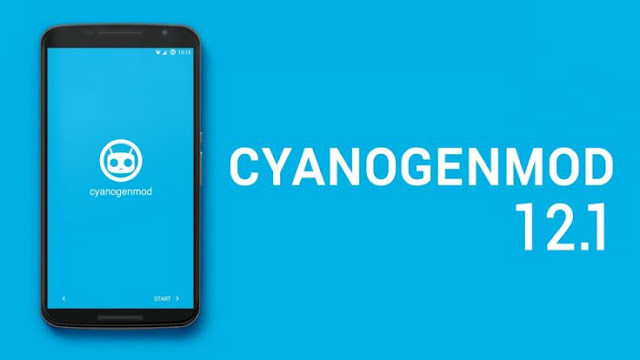
There are lot of custom roms available for motorola moto e condor but most of them are kitkat.If you want to enjoy new material design ui then you have to install android lollipop 5.1 on your device. Cyanogenmod has updated mote e to lollipop and you can straight away flash it.If you don't know how to do it then we will guide you to install cyanogenmod 12.1 (Cm 12.1) rom on motorola moto e condor.
Prerequisites:
- Charge your moto e to at least 80% for installing process to continue without any interruptions.
- Backup all your apps and data on your tablet to external sdcard or computer as Cyanogenmod 12.1 custom rom will erase data on your device including contacts.
- Back Emi and modem partitions of your device.IF you loose signal you can easily restore them if you have those partition backups.
- Enable usb debugging on your device.To do this go to setting and then to about device.You will find build number,tap on it continuously until you see a toast message "You are now a developer" . Go back and you will find developer options right above about device.Click on it and check on enable usb debugging.
- You must have a Twrp recovery installed on your moto e condor.
Install Cyanogenmod cm 12.1 on moto e condor:

Cyanogenmod rom :
Cyanogenmod is one of the best custom roms available in android development ecosystem.They support lot of devices.This rom is based on android open source project with lot of added features.
Features:
Flash using Twrp Recovery:Features:
- Theme engine: Theme engine is from the cyanogenmod custom rom which basically changes the look user interface from lock screen to ring tones all the way up to boot animations.The speciality of the theme engine is the ability to choose individual elements of every theme you have installed.So you like the ring tons and wallpapers of one theme and icons of other theme then you can have them at a time.Just open the theme chooser and you will understand how to do it.
- Performance control:A default cpu manager app to control frequencies and governors.You can adjust cpu frequencies and also set them on boot too.
- Trebuchet: This is the default launcher that ships with cyanogenmod rom.But if you flash gapps then you might loose this.It doesn't have too many features like nova or other launchers but its simple and fast.
- Software Updates: Cyanogenmod rom is usually available in three types one is nightlies which gets updated with new features every night and are quite stable for daily usage.second one is the snapchat which is monthly build version which will be stable version and other one is the release candidate.Some times nightlies are considered must stable than the snapshots.
- Status bar Tweaks:Status bar has lot of tweaks which include a brightness slider.Slide in status bar to adjust brightness of the screen.Double tap on status bar to sleep device and also network speed indicator for on going traffic info.
- Quick updates: You will receive Latest android updates much quicker on cm than other roms.
- Download Cyanogenmod 12.1 for condor and google apps ,transfer it to sdcard or internal storage of device.
- Power of the device completely and wait for about 10 seconds to make sure that it is completely off.
- Press volume up and power button simultaneously and once you see bootloader screen release buttons.
- Using volume down as a navigation button move to recovery and click on volume up button to confirm action.
- Once you are in twrp recovery backup existing rom first.
- Wipe data,cache and dalvik cache.Wipe even system partition too.
- Flash rom and then gapps.
- Reboot to system.
Wait for at least 20 minutes for initial boot before confirming that its a boot loop. If you soft bricked it then press and hold power button for 150 seconds and device shuts down forcefully.Now using button combinations you can enter recovery and restore backup which you have made earlier.Now you have successfully installed android lollipop 5.1 on Motorola moto e condor with cyanogenmod custom rom. If you have any question you can contact us by commenting below.
Euphoria Os custom rom for motorola moto e 2015 lte (surnia)
Update your Motorola Moto E 2015 to latest version of android lollipop using Euphoria Os custom rom.Slowly we are getting lot of custom roms for motorola moto e 2015.Euphoria os rom too joins the game now.Though this is an unofficial port from the developer "Jahrule"on xda .Most of the features are just working fine.If you are bored up with stock and other roms then flash this and enjoy its features.
This Rom which we are going to flash on moto e 2015 is specific to lte variant of this device which has a code name "Surnia". So if you have a 3g variant then just don't flash this on it as it might brick it for sure.
About Motorola Moto E 2015 lte: This device comes with a 4.5 inch 540x960 pixel resolution display which is protected by a corning gorilla glass 3 layer.It is powered by a snapdragon 410 processor clocked at 1.2ghz along with 1gb of ram and 8gb internal storage.Primary camera is a 5mp shooter while front facing camera is a VGA.Finally this device is powered by a non removable 2390mah battery which last much longer than its predecessor.

About Euphoria custom rom:
Euphoria OS is and after market firmware based on android open source project.You will get latest android version with this custom firmware.It comes with lot of added features over pure aosp Rom.According to developer "Jahrule".Rom is completely stable for daily usage.So you can flash it Right away on Moto E 2015 without any doubts.All basics functions are working fine like calls,messages, buletooth ,Wifi etc.
Features of Euphoria OS:
This Rom which we are going to flash on moto e 2015 is specific to lte variant of this device which has a code name "Surnia". So if you have a 3g variant then just don't flash this on it as it might brick it for sure.
About Motorola Moto E 2015 lte: This device comes with a 4.5 inch 540x960 pixel resolution display which is protected by a corning gorilla glass 3 layer.It is powered by a snapdragon 410 processor clocked at 1.2ghz along with 1gb of ram and 8gb internal storage.Primary camera is a 5mp shooter while front facing camera is a VGA.Finally this device is powered by a non removable 2390mah battery which last much longer than its predecessor.
Install Euphoria Os rom on Moto e 2015 lte(Surnia):

Euphoria OS is and after market firmware based on android open source project.You will get latest android version with this custom firmware.It comes with lot of added features over pure aosp Rom.According to developer "Jahrule".Rom is completely stable for daily usage.So you can flash it Right away on Moto E 2015 without any doubts.All basics functions are working fine like calls,messages, buletooth ,Wifi etc.
Features of Euphoria OS:
- Theme engine: It comes with a cyanogenmod mod theme engine so you can play with lot of themes.This is a great way of customizing your android device. You can theme each and every element of user interface all the way from wallpapers to boot animations.There are lot of themes available in playstore and some are premium too.Try this cyanogenmod custom rom for moto e 2015 too.
- Heads up notification: This notification system is similar to that in google'e one.Swipe left to dismiss notification and right to put it in background.Swiping down on it will open notification drawer and it merges in it.
- Wake options: Depending on the device you will have double tap to wake the device option in display settings and of course you have the option to put the device into sleep by double tapping on status bar.There is a option to wake phone after connecting charger.Display Wake features will only work fine if kernel supports them.You can try install Kernel on moto e 2015.
- Animations: You can have custom animations for app opening and closing or while scrolling.
- Navigation: Besides device wake options you can even adjust dimensions of navigation bar and set custom actions too like long pressing back button to kill recent app.In landscape mode navigation goes left hand side and yeah there is an option to disable this too if you don't like it.
- Security: Privacy guard is available in this Rom along with blacklisting of calls and messages.
- Sound: AudioFx is available for better quality of music.Other features include increasing volume ring tone,profiles,less notifications,you can disable volume adjustable sound,separate ring tones and notifications volume as usual.
- Power: Advance reboot option is enabled by default so you can boot into recovery,fast boot,soft boot easily.
- Screen recorder: There is screen recorder option too in display settings to record your actions on your device.
- Quick settings panel is customisable and brightness control too is available.
These are noticeable features of euphoria OS Rom and there are lot of other features too which you can explore on your own by flashing this custom Rom on your Motorola moto e 2015 lte aka surnia.
prerequisites:
By following above procedure you will be enjoying android lollipop based Euphoria Os custom Rom on Motorola Moto E 2015 Surnia.Since rom is unofficial and is still in early development it may have some bugs.If you have any other queries just leave a comment below.
prerequisites:
- Backup:Backup all your data which includes apps,contacts,photos videos etc everything to computer or any cloud storage as flashing Euphoria os custom ROM on Motorola moto e lte surnia will erase all your data.
- Battery: Charge your Mote e 2015 surnia to at least 90% so that you wont encounter any battery related issues while flashing this.
- Backup Efs partitions: Backup all your efs partition of your Moto e on current ROM.If you loose signal you can just restore it back.
- Lock Gps:Lock your gps position on your current rom.If you use this a lot then you have to lock it so that it could work even after flashing other roms. It's easy to lock gps .Turn on gps in settings and find your current location in google maps and now now have locked on to gps.
- Custom recovery: You need a custom recovery like twrp installed on your Moto e 2015 .Without it you can not flash roms at all.
- Downloads: Unofficial Euphoria Os Surnia and google apps.Transfer them to internal storage of your device.
Flash Euphoria Os rom using Twrp recovery:
- Download Euphoria Os custom rom (Euphoria-OS-1.1-surnia-UNOFFICIAL-20150527.zip) and Gapps transfer it to sdcard or internal storage of device.
- Power of the device completely.
- Press volume up,power button and Volume down simultaneously and once you see boot loader screen release buttons.
- Using volume down as a navigation button move to recovery and click on Volume up to confirm action.
- Once you are in twrp backup existing ROM first.It might take about 5 minutes for backup to complete.
- Wipe data,cache and dalvik cache.You wipe system parition too.
- Flash ROM and then gapps.
- Reboot to system.Wait at least 15 minutes for initial boot to complete and once done you can explore ROM features.
IF you experience bootloop then press and hold power button for about 15 seconds device force shutdowns.Now Using volume button combinations boot into recovery and restore backup which you have made earlier.
Update Motorola Moto E 2015(otus) to android marshmallow via Cyanogenmod 13 rom
Motorola Just announced that it will be updating its latest low end offering Moto E second gen aka otus to android marshmallow.But this might take some time for sure as they have to optimise the software to its hardware so that it runs effectively without any performance related issues.
If you don't want to wait for the official update to arrive then there are already alternatives available in form of custom roms.But most of them are in early stages of development and it might take some more time for the roms to get stabilised.
But there is one custom rom,cyanogenmod aka cm 13 which everyone is eagerly waiting for the official release and time has come for you to party hard as the one which we have been awaiting for is already available to download from the team.
If you want to try the latest version of android which is 6.0 aka marshmallow by updating your Motorola moto e otus then flash cyanogenmod 13 custom rom on it.If you don't know how to update it manually then you can follow this guide.In this post we will help to flash cm 13 and update your moto e 2015 to android marshmallow.
But as you already know that flashing is a risky process and we take no responsibility at all if your device fails to boot after flashing this custom rom.So flash at your own risk.Since there are lot of variants of moto e 2015 you have to keep in mind that this post if specifically to 3g variant of the device with device specific code name as "Otus".Flashing this on other variants of moto e 2015 might hard brick it for sure.
Features of cyanogenmod 13:
Before going further:
If you don't want to wait for the official update to arrive then there are already alternatives available in form of custom roms.But most of them are in early stages of development and it might take some more time for the roms to get stabilised.
But there is one custom rom,cyanogenmod aka cm 13 which everyone is eagerly waiting for the official release and time has come for you to party hard as the one which we have been awaiting for is already available to download from the team.
If you want to try the latest version of android which is 6.0 aka marshmallow by updating your Motorola moto e otus then flash cyanogenmod 13 custom rom on it.If you don't know how to update it manually then you can follow this guide.In this post we will help to flash cm 13 and update your moto e 2015 to android marshmallow.
But as you already know that flashing is a risky process and we take no responsibility at all if your device fails to boot after flashing this custom rom.So flash at your own risk.Since there are lot of variants of moto e 2015 you have to keep in mind that this post if specifically to 3g variant of the device with device specific code name as "Otus".Flashing this on other variants of moto e 2015 might hard brick it for sure.
Update Moto E 2015(otus) to marshmallow via CM13 rom:
If you are staring from scratch that is you don't have an unlocked bootloader then you have to follow the entire guide without missing any steps.But if you have recovery installed on your device then just go to last step for flashing cm 13 rom on moto e 2015.But before going to flashing stuff let me give you some info on cyanogenmod 13. |
| Update Motorola Moto E 2015(otus) to android marshmallow via Cyanogenmod 13 rom |
About cyanogenmod 13:
Cm 13 is the latest version of cyanogenmod's major release which uses android marshmallow as a base with all the custom features of cyanognemod.Though some of the features are missing, ultimately they will make a way to cm 13 but it might take some time. All features of open source android are inherited in this rom and i have listed all the possible features of the same below which you can look into if you like.Features of cyanogenmod 13:
- Theme engine: Theme engine is from the cyanogenmod custom rom which basically changes the look user interface from lock screen to ring tones all the way up to boot animations.The speciality of the theme engine is the ability to choose individual elements of every theme you have installed.So you like the ring tons and wallpapers of one theme and icons of other theme then you can have them at a time.Just open the theme chooser and you will understand how to do it.
- Software Updates: Cyanogenmod rom is usually available in three types one is nightlies which gets updated with new features every night and are quite stable for daily usage.second one is the snapchat which is monthly build version which will be stable version and other one is the release candidate.Some times nightlies are considered must stable than the snapshots.
- Status bar Tweaks:Status bar has lot of tweaks which include a brightness slider.Slide in status bar to adjust brightness of the screen.Double tap on status bar to sleep device and also network speed indicator for on going traffic info.
- If you root apps don't work then that is no response form super user it means it has been disabled and you can enable it in developer options easily.
- System ui tuner: This is new feature that let you tweak ui a bit but has been hidden just like developer option.If you want to add it to setting app,swipe down the notification panel and on top you will notice a gear icon.Press and hold it and you will notice that it starts spinning.Just leave it once you notice the vigorous spin and you will see a toast message "system ui tuner" added to settings.
- There are ton of brand new wallpapers.
- Google launcher now has vertical scrolling instead of horizontal.
- Multi window: Google finally introduced multi window concept in tablet version of os.You can run two apps in a single window.Activating multi window is also too easy.When you open recents you will notice there is another option beside the closing button on cards.Press on it and activate multi window.But this multi window is not configurable which means adjust width of apps that are running.
- Auto rotation on home screen is also added which you can find in launcher settings.
- Now on tap: If you use google now frequently this feature might help you a lot.Usually when you press and hold on home button it will take you to google now.If you enable this feature when you try to access google now on any app it load some related suggestions along with some google now card.
- Screen shot notification will also have delete button along with share option.
- Memory option: This is available in settings .It gives you memory usage on your device from last "3hrs or 6 hrs or 1 day".
- App permission manger is the major thing in android m.This lets you to block certain permission so that the app cannot access them.like if you don't want facebook to access your bluetooth you can now do it with out rooting your device.
- Phone short cut on lock screen is replaced with google now.
- Search bar in settings menu.
- New volume panel: You can now adjust volume of media, call and notification from single window .This feature is absent in previous versions of android though present in most of the oem provided firmwares.
These are the features of cyanogenmod 13 and you can explore them by flashing this on your moto e otus.
- Check your device model number and make sure that you are using only the otus codenamed device.Since there are lot of variants of moto e second gen device flashing on other variants might brick the device.
- Backup:Backup all your data which includes apps,contacts,photos videos etc everything to computer or any cloud storage as Updating /flashing android marshmallow on moto e 2015 aka otus will erase all the data.
- Battery: Charge your moto e 2015 aka otus to at least 90% so that you wont encounter any battery related issues while flashing this.
- You need to have an unlocked bootloader to flash this rom.if not follow the entire guide for the same.
- Backup Efs partitions: Backup all your efs partition of your Moto e second gen on current rom..If you loose signal you can just restore it back.
- Lock Gps: Lock your gps position on your current rom.If you use this a lot then you have to lock it so that it could work even after flashing other roms. It's easy to lock gps .Turn on gps in settings and find your current location in google maps and now now have locked on to gps.
- Custom recovery: You need a custom recovery like twrp installed on your moto e otus.Without it you can not flash roms at all.
- Downloads: Cm13 for moto e otus and google apps. Transfer them to internal storage of your device.
#1 Unlock bootloader of Motoro Moto E 2015:
Unlocking the bootloader of Motorola Moto e 2015 is a very simple task.For this you need to download fastboot for pc and then you can proceed further.
- Enable usb debugging on the device by going into developer options and you need to enable an options "enable oem unlock" in developer settings menu itself.
- Reboot the device into fastboot mode and connect it to pc using a usb cable.
- Now type the command "fastboot device" to check if it is detected or not.If detected type the command "fastboot get_unlock_data" and hit enter.You will get a unlock code.
- Copy and paste the unlock code in Motorola official bootloader unlock website and you will get a unlock code to your device.
- Copy the key which they have mailed you and come to fasboot again.
- Type the command "fastboot oem unlock unique_key". replace the unique with that of what you got in mail and hit enter.
- Moto E 2015 bootloader will be unlocked and you will loose all the data on the device.
#2 install Twrp ercovery on Moto e 2015:
- Make sure that you installed fast boot on our computer by following above guide.
- After enabling usb debugging on your phone connect it to computer using a usb cable.
- Now open fastboot folder and copy and paste recovery image for moto e otus which you have download in the fastboot folder.
- Type the command "adb devices" and you will notice a pop on your phone to grant access to your device.Grant permissions .
- Now type the command "adb reboot-bootloader" and press enter and device enters boot loader mode.
- Once you are in bootloader mode type the command "fastboot devices" to know if your device is detected.If your device is detected you will get a key before list of devices.If not reinstall fastboot drivers.
- Now Type the command " fastboot flash recovery recovery.img" and recovery will be flashed on your phone.
- After Installing recovery you may see a warning message Miss matched partition size.Just ignore it.
- Disconnect phone from computer and using volume down key select recovery and click volume up button to confirm to boot into recovery.
- Once your device boots into recovery you can now flash roms,kernels or any other mods.
#3 Flash Cm 13 on moto e 2015 using Twrp recovery:
- Download Cyaogennmod 13 custom rom for otus and Gapps transfer it to sdcard or internal storage of device.
- Power of the device completely and wait for few seconds to confirm that it is off completely.
- Press volume up,power button and Volume down simultaneously and once you see boot loader screen release buttons.
- Using volume down as a navigation button move to recovery and click on Volume up to confirm action.
- Moto E otus boots into Twrp recovery.
- Once you are in twrp click on backup and select all the partitions which you want to backup. . It might take about 5 minutes for backup to complete. Don't interrupt backup process.
- Once backup of your existing rom is completed click on back button.Wipe data,cache and dalvik cache and wipe system partition too.
- Now select Install and navigate to location where you have placed your cm 13 Rom and gapps zip files.
- Flashing rom might take about 5 minutes or so.Once flashing is complete do a factory reset again.
- Now reboot to system.Wait at least 15 minutes for initial boot to complete and once done you can explore rom features.
Thursday, December 10, 2015
Install android 5.1 based resurrection remix custom rom on motorola moto e condor
Motorola Moto E is decent mid range device from Motorola.This device is the best that you can buy in its price range and has decent performance and great battery life.The biggest let down for the device is its camera and limited internal storage.Moto e has internal storage about 4 gb of which only 2.1gb is available for the user.Motorola rolled out android 5.0 through soak test but later they stopped it and promised to update moto e to android 5.1 directly.
There are lot of custom roms available for motorola moto e condor but most of them are kitkat.If you want to enjoy new material design ui then you have to install android lollipop 5.1 on your device. Cyanogenmod has already updated mote e to lollipop and you can straight away flash it.In our previous post we have showed you how to install cyanogenmod 12.1 (Cm 12.1) rom on motorola moto e condor.In this post we are guiding you to install another lollipop based custom rom resurrection remix.
Prerequisites:


Features of this rom:
Install rr ROM on moto e using twrp recovery:
There are lot of custom roms available for motorola moto e condor but most of them are kitkat.If you want to enjoy new material design ui then you have to install android lollipop 5.1 on your device. Cyanogenmod has already updated mote e to lollipop and you can straight away flash it.In our previous post we have showed you how to install cyanogenmod 12.1 (Cm 12.1) rom on motorola moto e condor.In this post we are guiding you to install another lollipop based custom rom resurrection remix.
Prerequisites:
- Charge your moto e to at least 80% for installing process to continue without any interruptions.
- Backup all your apps and data on your tablet to external sdcard or computer as flashing resurrection remix custom rom on moto e will erase all app data on your device including contacts.
- Back Emi and modem partitions of your device.IF you loose signal you can easily restore them if you have those partition backups.
- Enable usb debugging on your Moto e.To do this go to setting and then to about device.You will find build number,tap on it continuously until you see a toast message "You are now a developer" . Go back and you will find developer options right above about device.Click on it and check on enable usb debugging.
- You must have a Twrp recovery installed on your moto e condor.
Resurrection remix custom rom motorola moto e Condor:

About resurrection rom:
This Resurrection remix rom which your are about to flash motorola moto e condor is based on android 5.1.1 lollipop and is based on cyanogenmod,slim,omni and original remix roms.So you can all the best features of other roms included in this rom along with performance and a decent battery life.
Features of this rom:
- Navigation bar tweaks: You can enable disable or navigation bar and also you can adjust the size of navigation bar.Navigation ring included toggles to in case of quick access just swipe from bottom of screen and you can access apps which you have set.
- Status bar tweaks: Status bar has lot of tweaks which include a brightness slider.Slide in status bar to adjust brightness of the screen.Various tweaks are available to carrier label too like color and switch.Quick and smart pull down are also present.Battery icon too has tweaks.
- Gesture anywhere: This basically lets to open any app at any time(while using other apps) with just a gesture.You have to set the gestures and use them.
- Recent panel mods: Stock recent panel do not have an option to clear all the apps at once.In this ROM you a button to clear apps and can even set the position of the button.
- App circle Bar:Swiping from the left or right edges of the scren an app bar pops up and you can choose what app you want to launch.This is great way of multitasking.
- Lock screen mods: This includes placing of 5 shortcuts on lock screen and also set targets for the slider.
- Theme engine: Theme engine is from the cyanogenmod custom ROM which basically changes the look user interface from lock screen to ring tones all the way up to boot animations.The speciality of the theme engine is the ability to choose individual elements of every theme you have installed.So you like the ring tones and wallpapers of one theme and icons of other theme then you can have them at a time.Just open the theme chooser and you will understand how to do it.
Install rr ROM on moto e using twrp recovery:
- Download Resurrection remix rom for moto e condor and google apps transfer it to sdcard or internal storage of device.
- Power of the device completely.
- Press volume up and power button simultaneously and once you see boot loader screen release buttons.
- Using volume down as a navigation button move to recovery and click on volume up button to confirm action.
- Once you are in twrp recovery backup existing rom first.
- Wipe data,cache and dalvik cache and if necessary system partition too.
- Flash ROM and then gapps.
- Reboot to system and Wait for at least 20 minutes for initial boot to complete before confirming that moto e has bootlooped.
Subscribe to:
Posts (Atom)